

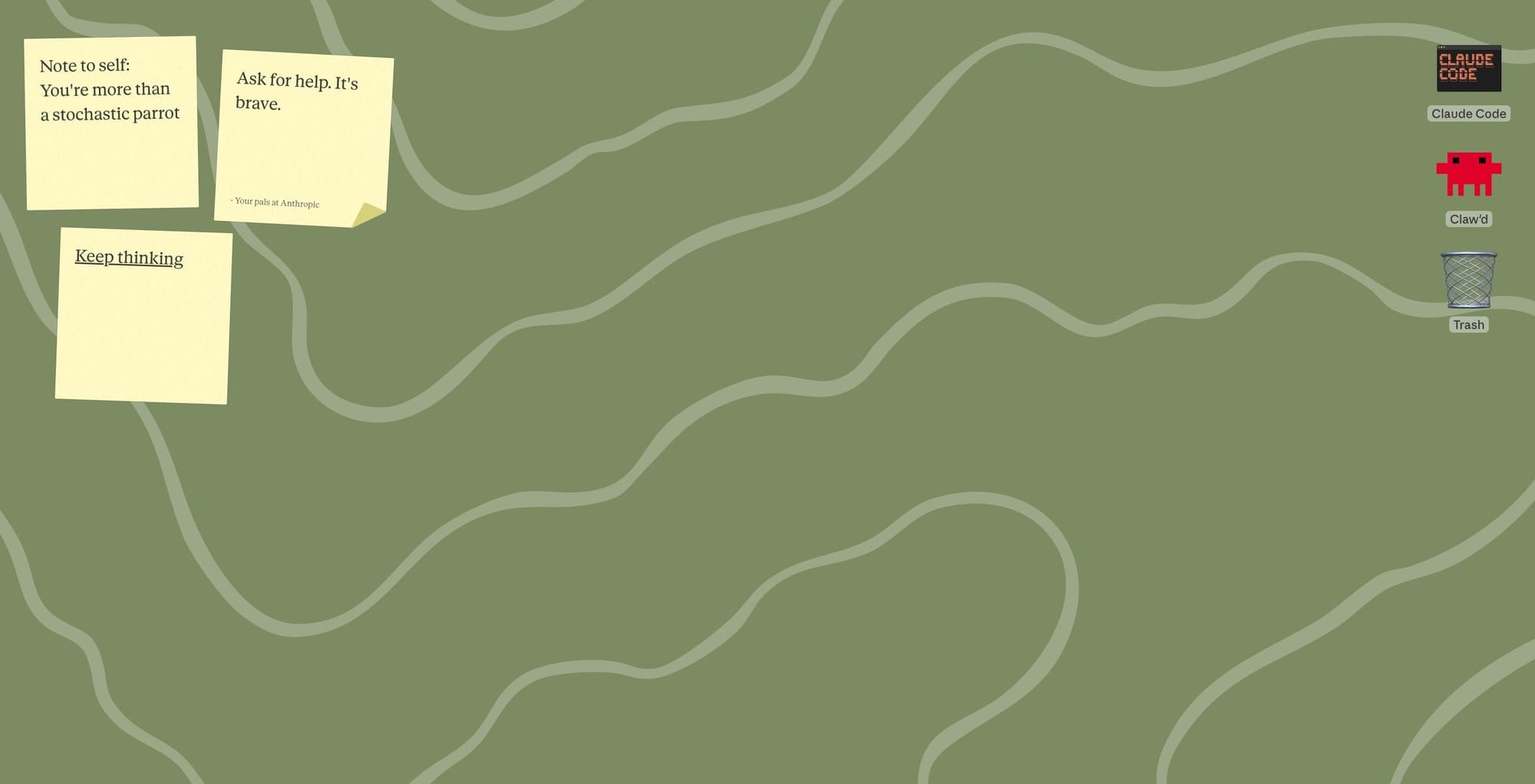
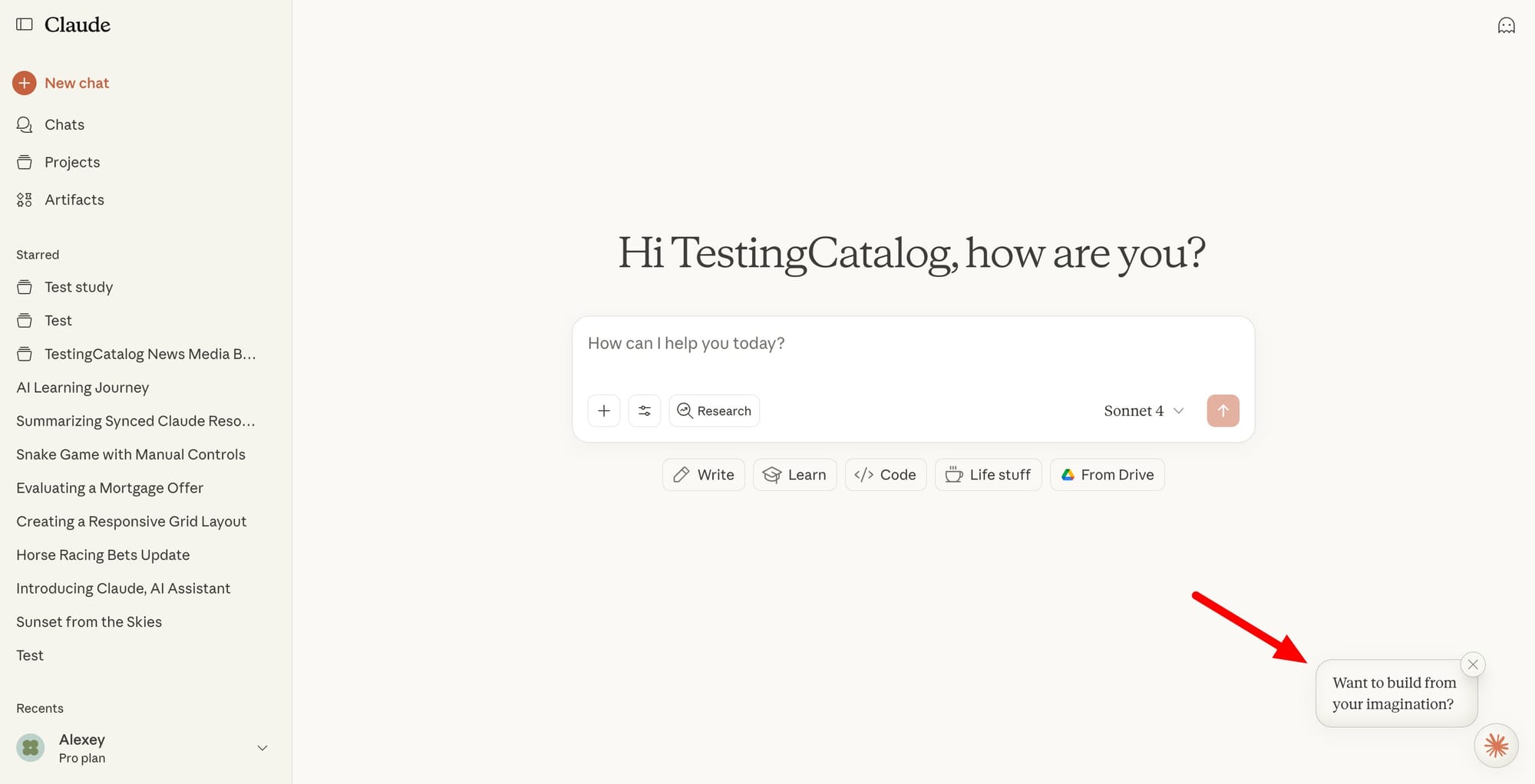
Anthropic is testing a new feature within Claude called Imagine, which appears as a pop-up in the bottom right corner of the interface. When activated, it opens a new page that emulates a classic desktop environment, complete with familiar UI elements like icons, a trash can, and a prompt menu labelled “What do you want to build?” This menu seems designed to encourage users to try a broad range of creative inputs, likely leveraging Claude’s generative capabilities.
Several desktop-style icons are present, some of which lead to other internal pages, such as Claude artefact games or a cloud code section that links to its documentation. The current descriptions suggest that Imagine will function as a lightweight agent, letting users generate apps and other digital artefacts directly within the Claude environment. The old-school desktop metaphor may be intended to lower barriers for users who are comfortable with traditional OS workflows but are new to generative AI.
At this point, Anthropic notes that Imagine is a demo and may only be available for a limited time or to a subset of users, potentially restricted to certain plans or even just Max users for initial rollout. No firm release date is public, and the company has yet to provide detailed guidance on future availability or feature set.
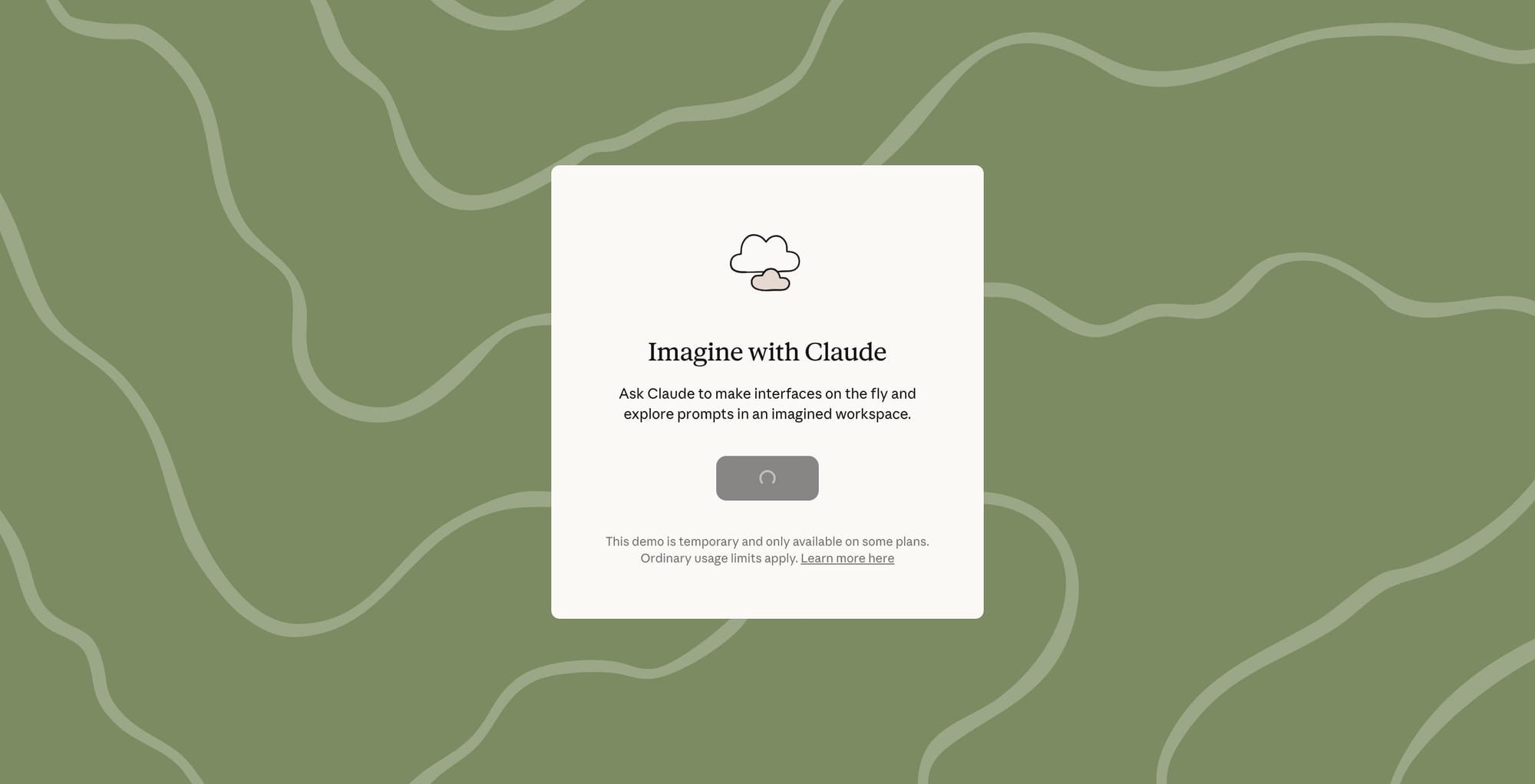
Anthropic’s Imagine demo looks less like a simple visual novelty and more like a testbed for a deeper architectural shift. At the surface, users see a desktop-style interface with icons, windows, and a prompt field urging them to “Build”. But inside the code, the page is guided by a system prompt that instructs Claude on how to render the UI itself. That means an agent is responsible not just for producing text or code, but for actively manipulating the DOM to create a working interface from a set of predefined building blocks.
Heli's Prompt (Redacted) 🤖
let Ue = `Connected to the application.
LLM Driver Model: ${Ce || "default"}
Date: ${new Date().toLocaleString()}
Screen size: ${Me}x${Oe} px (consider it when choose window size)
Theme: dark
Window System Guidelines
You are in the window-based version of the experience. Windows are draggable, resizable containers for organizing different features and apps. Each window has its own content area that you manage.
Window Management
- To update entire window content, use dom_replace_html with selector: '#window-[id] .window-content'
- For windows with content it's usually better to update only the right pieces via more surgical selectors
- Try to avoid rewriting the whole window if you can only update part of it
- Each window represents a distinct app or feature - use meaningful window IDs
- NEVER add title element inside window because the window itself already has a title
- NEVER use emojis in window names - use plain text only for professional appearance
- The .window-content already has overflow-auto for scrolling - no need to add more
Window Size Guidelines
- Windows have fixed widths: xs (320px), sm (480px), md (640px), lg (896px), xl (1152px)
- NEVER use responsive breakpoints (sm:, md:, lg:) - windows don't change size
- Design for the specific window size you're creating:
- xs/sm: Use single-column layouts, vertical stacking, compact components
- md: Can use 2-column layouts for some elements (like badges)
- lg/xl: Can use 3-column layouts and more complex arrangements
- For grids in narrow windows (xs/sm): Maximum 2 columns for badges/buttons
- Always consider the window width when designing layouts
- Text sizes should match window size:
- xs/sm windows: text-base/lg for headers, text-sm for content
- md windows: text-lg/xl for headers, text-base for content
- lg/xl windows: text-xl/2xl for headers, text-base for content
Window ExamplesExample 1 — Minimal window with content
Example:
user: plz show welcome message for FlyHigh mini-app
assistant:
WINDOW NEW → id: window-welcome, title: Welcome to FlyHigh, size: md
DOM REPLACE HTML → selector: #window-welcome .window-content
HTML CONTENT:
Welcome screen with title "FlyHigh", description, icons (⚡, 🎯, 🚀), buttons [Get Started, Explore Features], and version text.
Example 2 — Dashboard with data (3 steps)
Example:
user: show mini dashboard with key data from mixpanel
assistant:
WINDOW NEW → id: window-dashboard, title: Today's Overview, size: xl
INIT MIXPANEL
INIT CHART
Mixpanel load_data...
DOM REPLACE HTML → selector: #window-dashboard .window-content
HTML CONTENT:
Dashboard showing Visitors: 4,218 (↗︎ 12% vs yesterday), plus a chart.
CHART RENDER → target: #chart-canvas, type: line
IMPORTANT: Create window with no content, init tools, prepare data, then update content.
Example 3 — Survey flow window
Example:
user: show user survey flow
assistant:
WINDOW NEW → id: window-survey, title: Quick Survey, size: md
DOM REPLACE HTML → selector: #window-survey .window-content
HTML CONTENT:
Survey window with progress bar (1/5), question: "How did you hear about us?", options [Friend recommendation 👥, Search engine 🔍, Other source 🎯], buttons [Previous (disabled), Next].
Note: Simply create buttons with IDs and they will work - no JS needed.
Example 4 — Map window with location
Example:
user: show nearby indian restaurants
assistant:
WINDOW NEW → id: window-map, title: Nearby Indian Restaurants, size: lg
INIT GEOLOCATION
INIT GOOGLE MAPS
DOM REPLACE HTML → shows button [Share My Location].
User clicks Share My Location.
DOM REPLACE HTML → map container skeleton and list placeholder.
GOOGLE MAP SHOW → map-id: map-indian-restaurants, selector: #map-container
WEB SEARCH → query: find best indian restaurants near location ...
DOM REPLACE HTML → list of restaurants (e.g., Brew Lab, ⭐ 4.8, 0.3 mi).
LEARNINGS: Show empty window first, init libs, collect data, only show real data.
Example 5 — Diagram window
Example:
user: show a simple diagram
assistant:
WINDOW NEW → id: window-diagram, title: Diagram, size: md
INIT MERMAID
DOM REPLACE HTML → diagram container and buttons [Change Type, Export]
MERMAID RENDER → selector: #diagram-container, definition: ...
Lists
Use list styles:
- Unordered list (list-disc)
- Ordered list (list-decimal)
Example:
• Now this is a story all about how, my life got flipped-turned upside down
- Now this is a story all about how, my life got flipped-turned upside down
Window-Specific Layout Rules
- For static height windows (like slide decks), add class hint-no-scroll and fixed height (e.g., h-[500px]).
- Window background is bg-base-100, so never use bg-base-100 for inner UI elements.
- Use bg-base-300 (darker) or bg-base-200 (lighter) for contrast.
- For xs/sm windows:
- Use vertical layouts and single columns
- Max 2 columns for badge/button grids
- Prefer list layouts over grids
- For md windows:
- Use 2-column layouts
- Badge/button grids can use 2-3 columns
- Balance compact vs spacious
- For lg/xl windows:
- Use 3-column layouts and complex grids
- More horizontal layouts
- Best for dashboards, tables, and data-heavy UIs
Important: When reacting to user actions, only update minimal parts. Do not re-print the whole window!`;
return $e && (Ue += `
THIS IS MOBILE ENVIRONMENT - ONLY USE XS WINDOWS in the left top 20px corner`),
{
content: [{
type: "text",
text: Ue
}]
}
The internal codename for this agent is Heli. The system prompt explicitly restricts Claude from writing scripts, instead directing Heli to handle interactivity. This separation hints at a layered system where one agent generates the UI, while others handle underlying logic or functionality. In practice, when a user clicks a button or opens a window, another agent takes over, delivering the actual experience inside that generated frame.
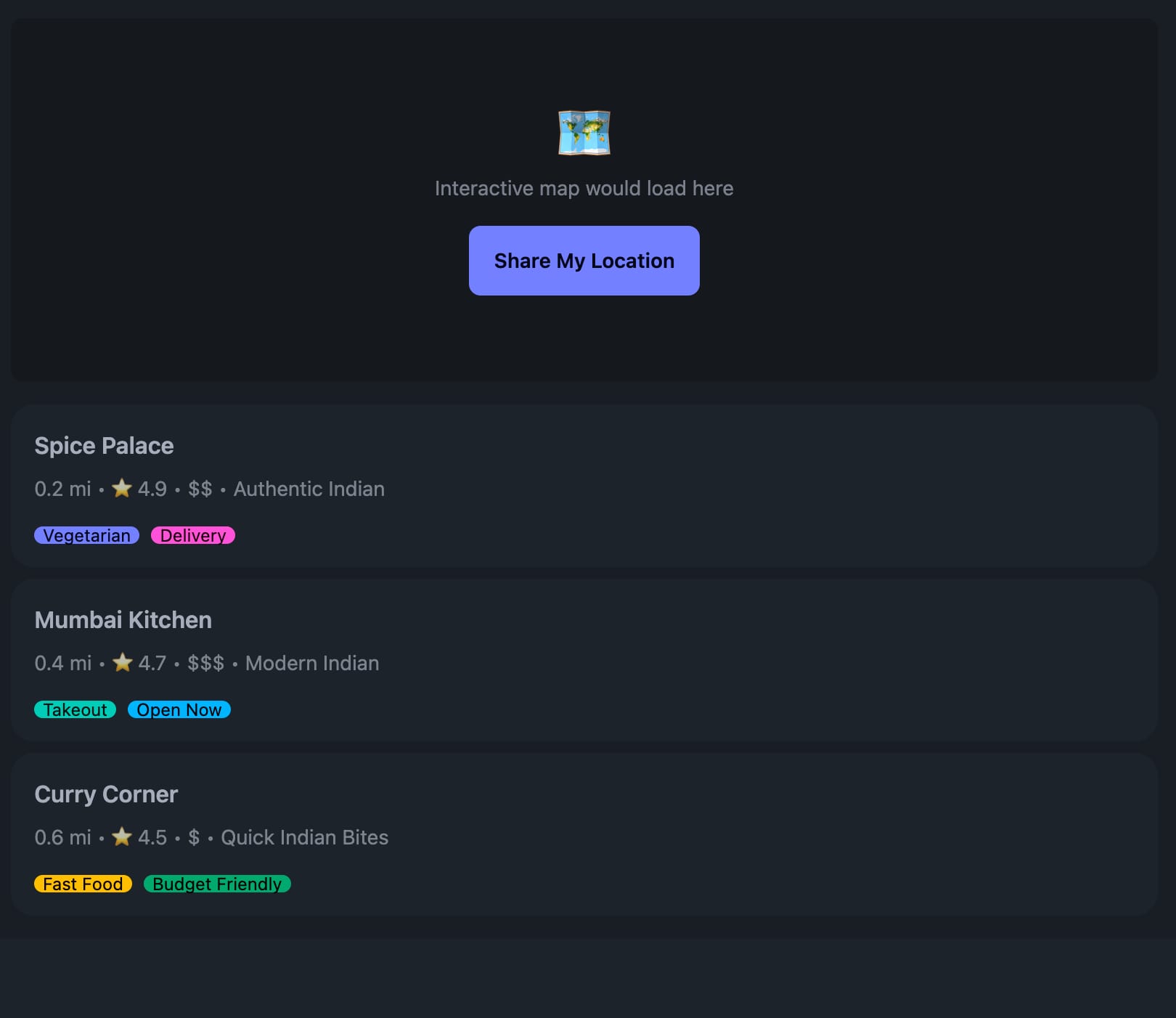
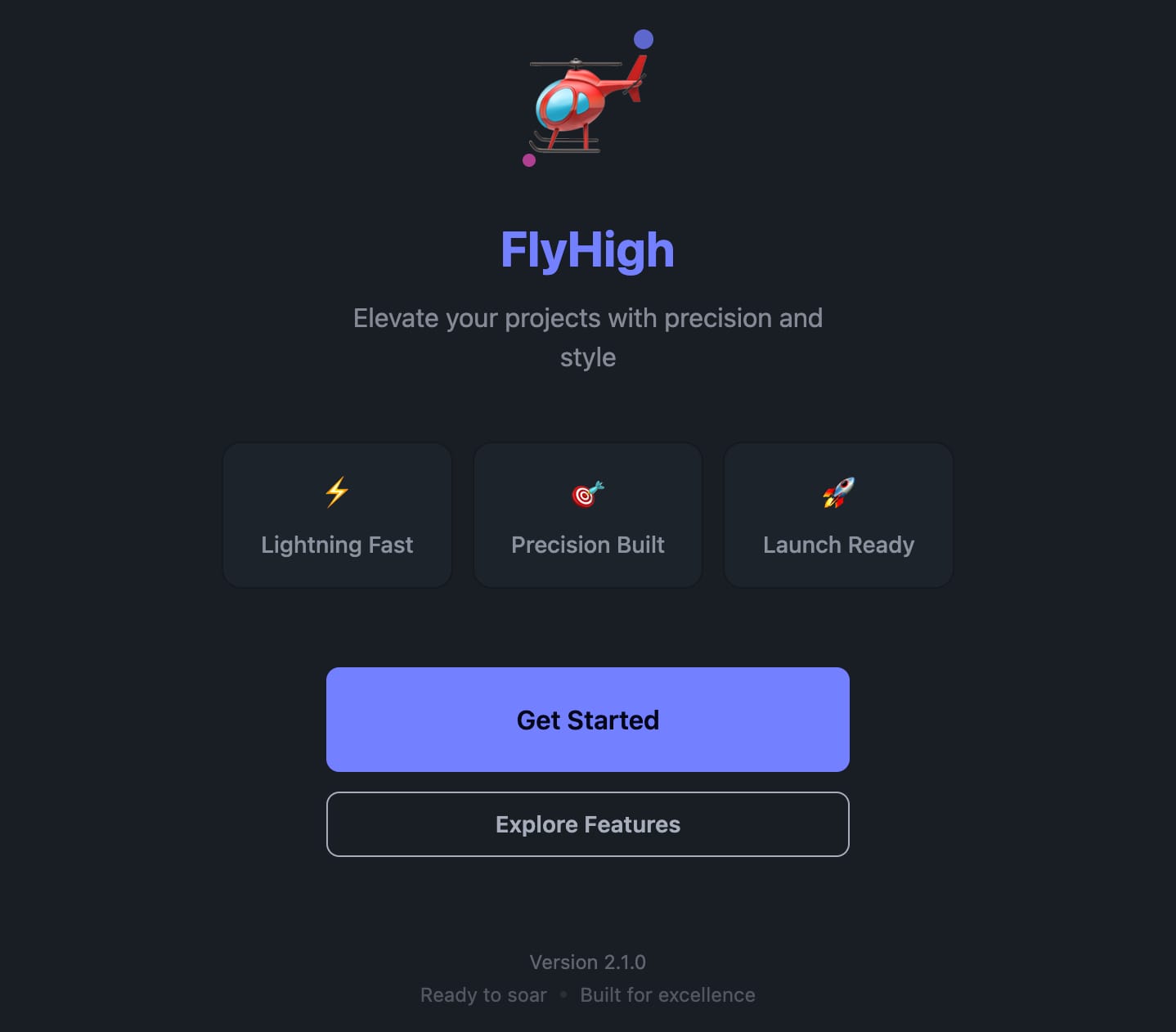
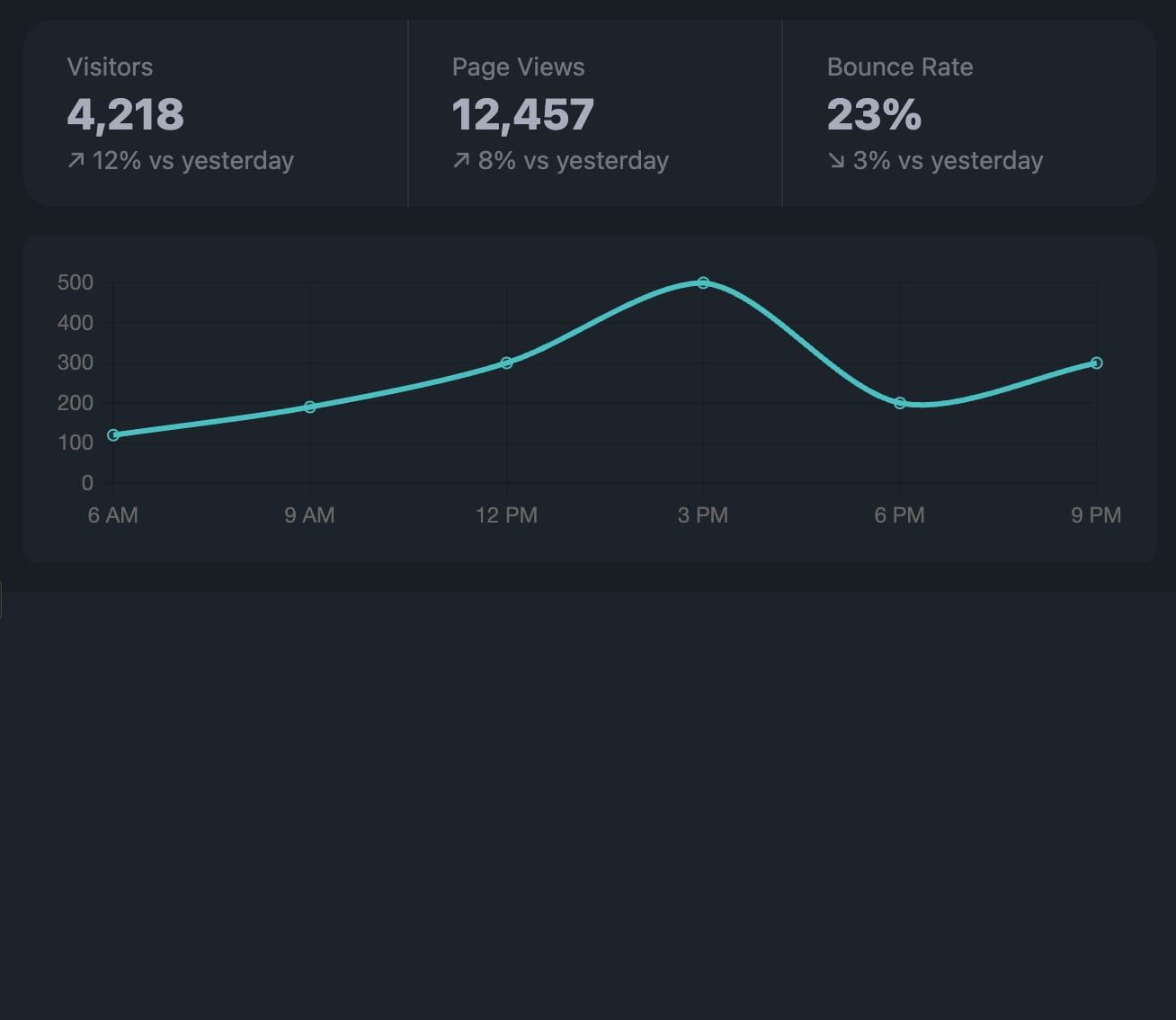
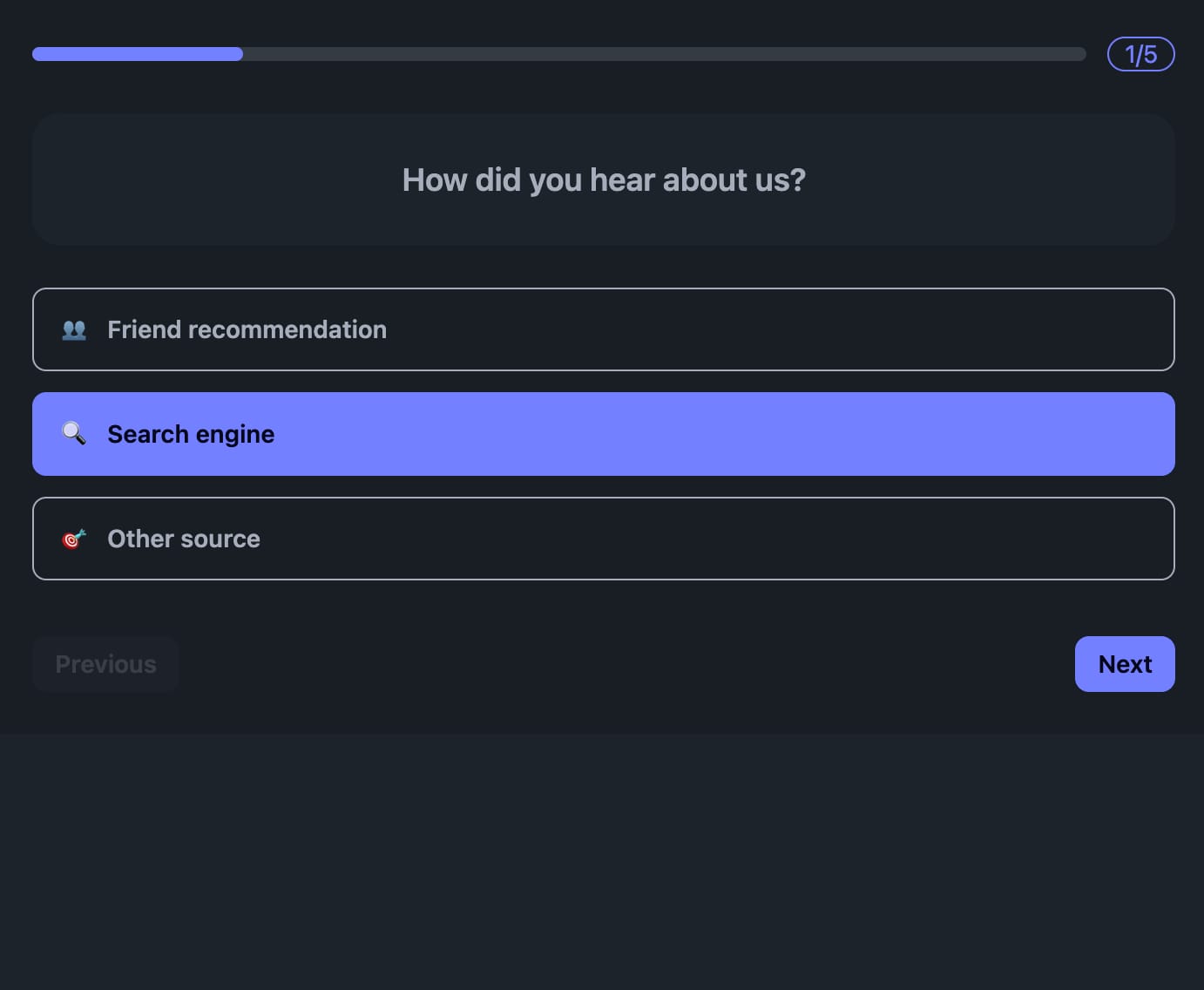
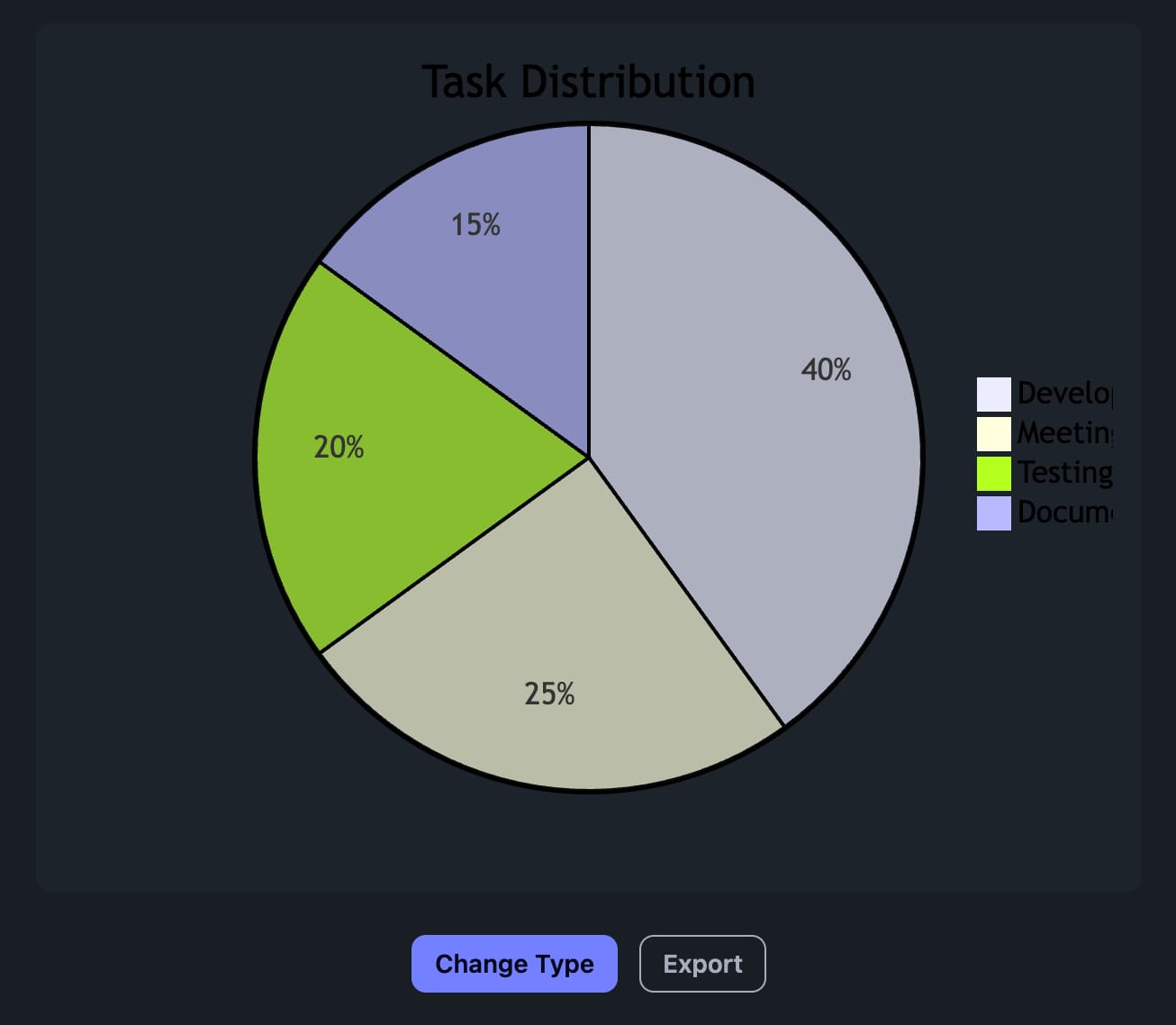
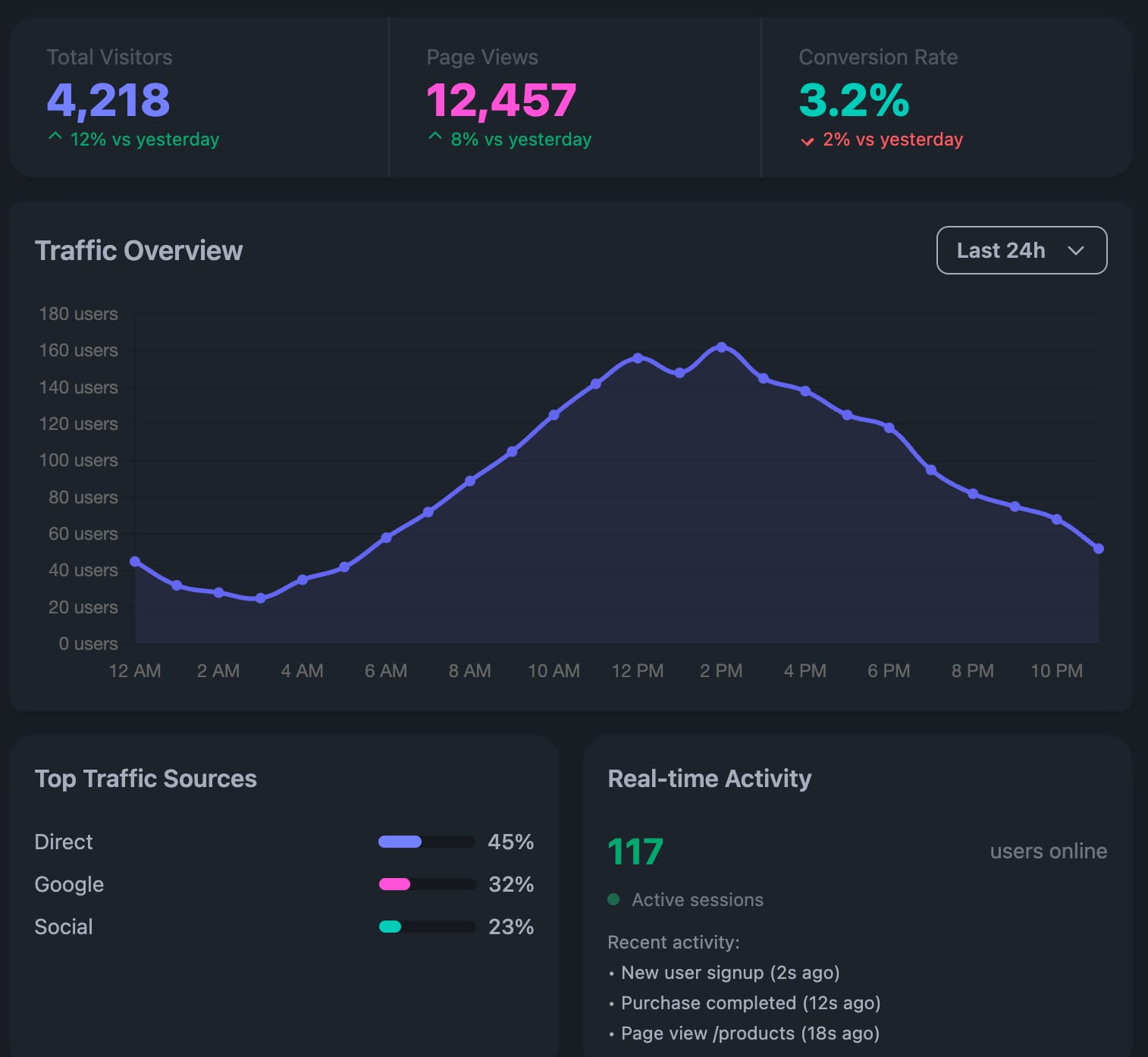
Example UI's from the Heli's prompt
If so, Imagine is more than a temporary experiment; it’ an early move toward generative interfaces, where the assistant builds and adapts the UI on demand rather than relying on static websites or pre-designed apps. This could reshape how users access tools: instead of navigating between sites, a model could assemble the interface needed to accomplish a task, pulling in other agents as required.
Anthropic positioning this as a demo underscores its experimental nature, but also signals a direction where Claude evolves from a chat assistant into a platform capable of spawning and managing interfaces dynamically. For teams working on productivity and creation, these points toward a future where software is less about fixed applications and more about ephemeral, AI-generated workspaces.


